
Identity Verification (KYC) Identity verification (called KYC – Know Your Customer) is mandatory to use all Binance features, including those necessary for qPilot.
Why is verification needed?
- It is required by law under international financial regulations.
- It protects your account from unauthorized access.
- It unlocks essential features like deposits, withdrawals, and trading.
Verification Levels Binance has different verification levels. For qPilot, you need to complete at least the Intermediate Verification. Intermediate Verification includes:
- Personal data (name, surname, date of birth, address).
- ID Document.
- Facial recognition.
Verification Procedure
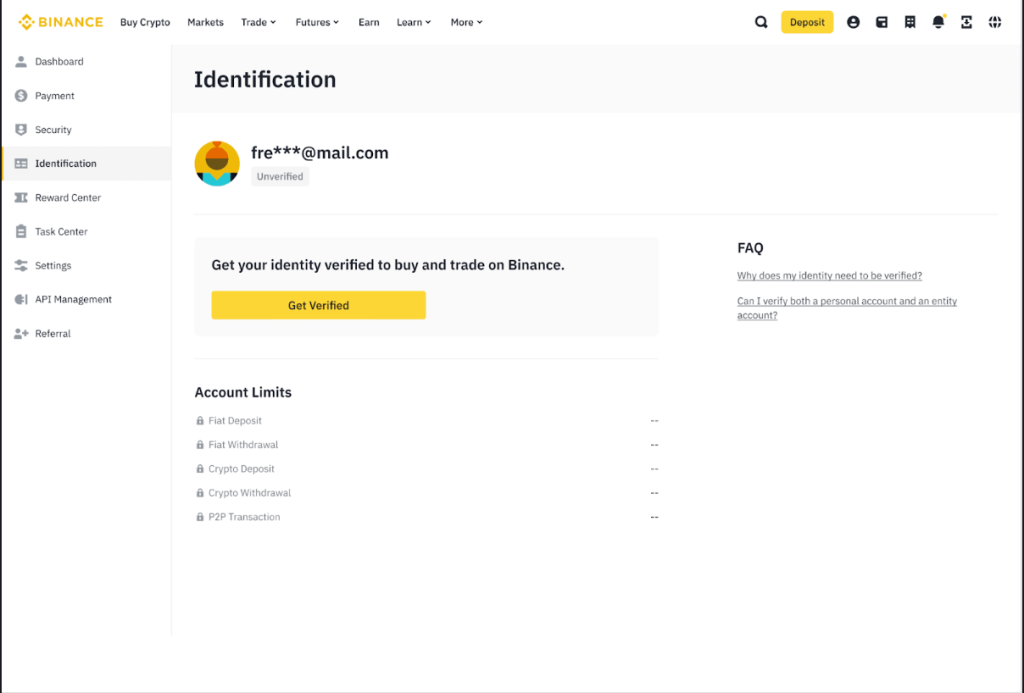
- Log in to your Binance account. Enter email and password. Complete any security verifications.
- Start identity verification:
- Click on the profile icon (top right).
- Select “Identification” or “Verify”.
- Or: look for the yellow banner saying “Verify Now” on the dashboard.
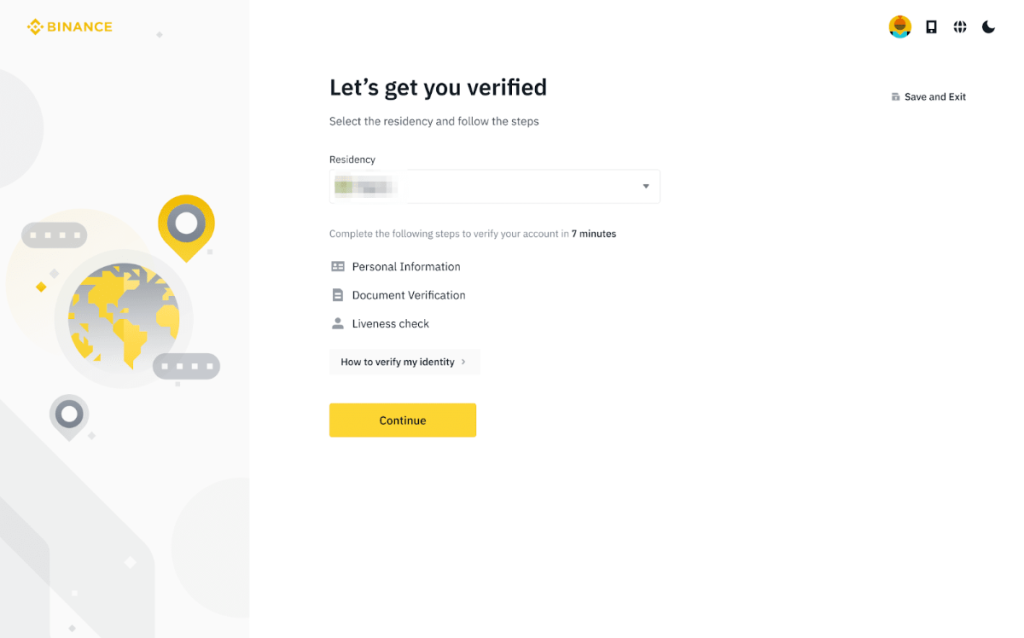
- Select Country of Residence:
- Choose your country of residence.
- Click on “Continue”.
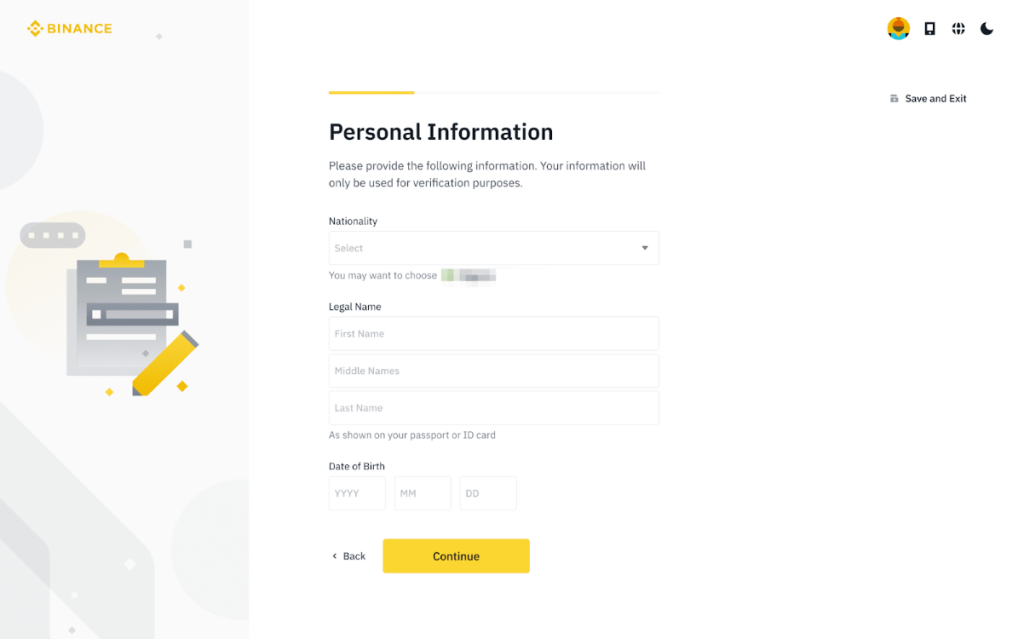
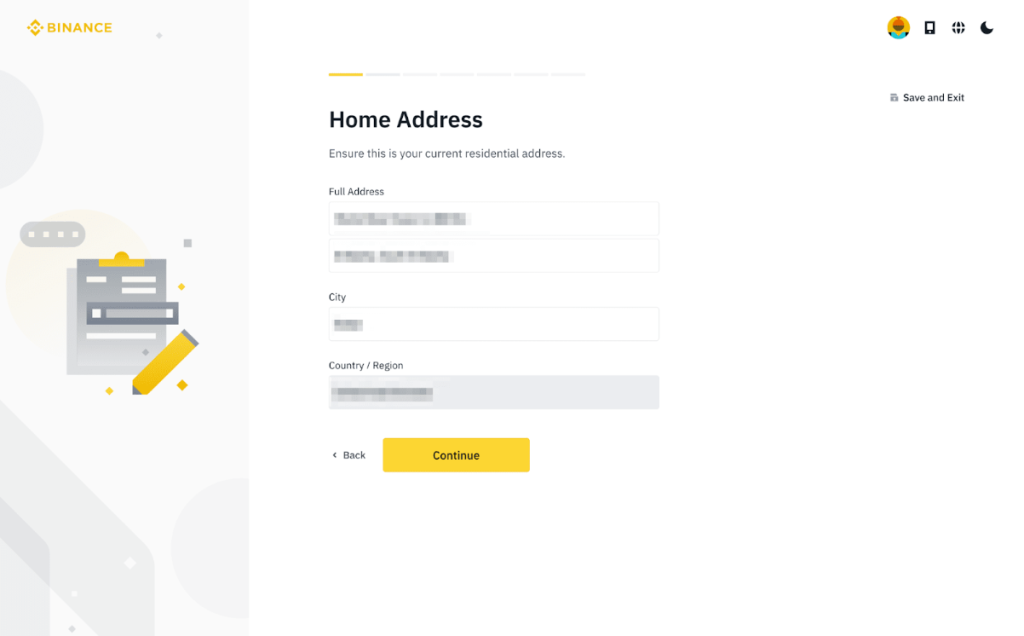
- Enter your personal data: You will be asked to fill in:
- Name (as on the document).
- Surname (as on the document).
- Date of birth.
- Nationality.
- Full residential address (Street and number, City, Zip Code, Province).
- ⚠️ ATTENTION: The data must match exactly those on the document you will upload. Even a small difference can cause verification rejection.
- Choose the document type: You can use ID Card (front and back), Passport, or Driver’s License (front and back).
- Upload document photos: You can proceed in two ways:
- Option A – From smartphone (recommended): Binance will show you a QR code. Scan it with your smartphone. You will be redirected to the mobile app or phone browser. Follow instructions to photograph the document.
- Option B – From computer: Upload existing photos of your document or use the webcam to take photos.
- Complete facial recognition: After uploading the document, you will need to complete face verification.
- Use smartphone (easier and faster).
- Follow on-screen instructions: Center your face in the frame ; they might ask you to turn your head or make specific movements ; ensure you are in a well-lit place.
- Wait for verification: Click on “Submit” to complete the procedure. You will receive a confirmation that the request is being processed. Verification usually takes from a few minutes to 24 hours. You will receive an email when verification is complete.
What to do after verification
- Verification approved: You will receive a confirmation email. You will see the “Verified” status in your profile. You can now proceed with the next steps!
- Verification rejected: You will receive an email with the reason. Check the rejection reasons (e.g., unreadable document, mismatched data). You can try again immediately by correcting the errors.
- Common problems:
- Blurred photo or reflections;
- Entered data different from document;
- Expired document;
- Facial recognition failed.
Is this page helpful?