
2FA (Two-Factor Authentication) is a security system that adds an extra layer of protection to your Binance account. Instead of using only the password, you will need to confirm your identity with a second method as well.
Why is it mandatory for qPilot?
- Binance requires 2FA to create sub-accounts.
- Necessary to generate API keys that will connect Binance to qPilot.
- Protects your account from unauthorized access.
What you need Before starting, prepare:
- A smartphone (Android or iOS)
- The computer where you have Binance open
Step 1: Choose the 2FA method
Binance offers several two-factor authentication methods. For qPilot, we recommend Google Authenticator, the simplest and most reliable method.
For this guide, we will use Google Authenticator, the simplest and safest method but you can use your preferred authenticator app.
Step 2: Install Google Authenticator
- Take your smartphone.
- Open your phone’s store
- Search for “Google Authenticator“.
- Search for exactly this name.
- The app is developed by Google LLC.
- Download and install the app (it is completely free).
- Open the app.
- You don’t need to create an account.
- The app is ready to use immediately.
Step 3: Activate 2FA on Binance
- Log in to your Binance account (from computer).
- Go to www.binance.com.
- Log in with email and password.
- Access security settings:
- Click on the profile icon (top right).
- In the side menu, select “Account” and then “Security”.
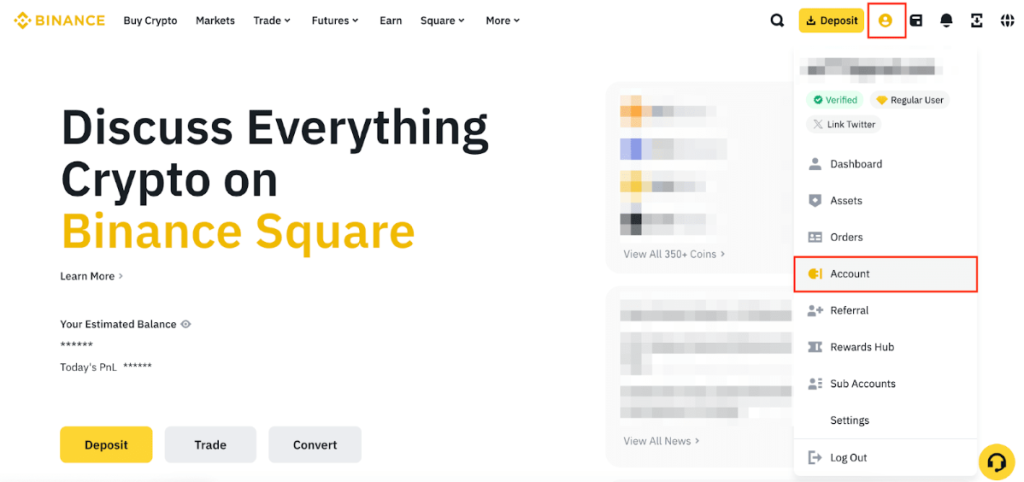
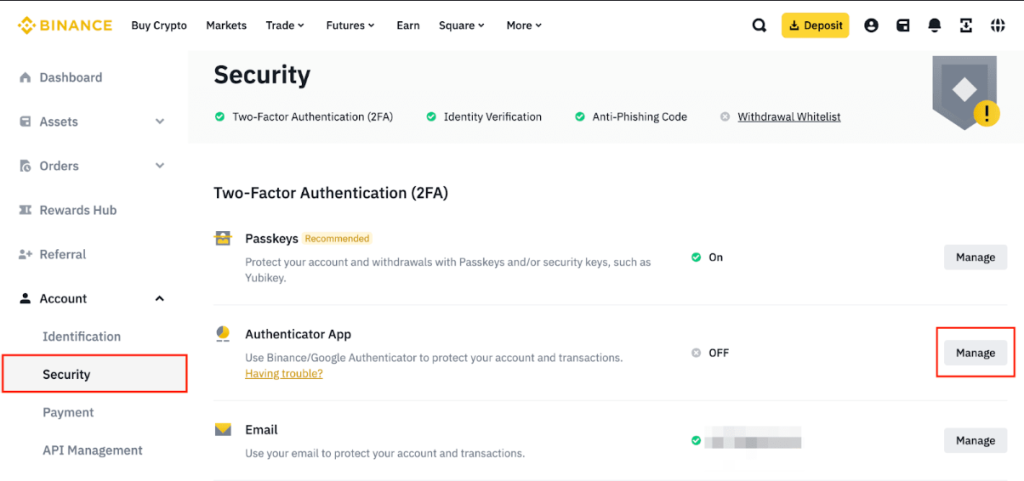
- Find the Two-Factor Authentication section:
- Scroll down the page until you find “Two-Factor Authentication (2FA)”.
- You will see several available options.
- Select “Authenticator App”:
- Click on the “Enable” or “Manage” button next to “Authenticator App”.
- A new window with instructions will open.
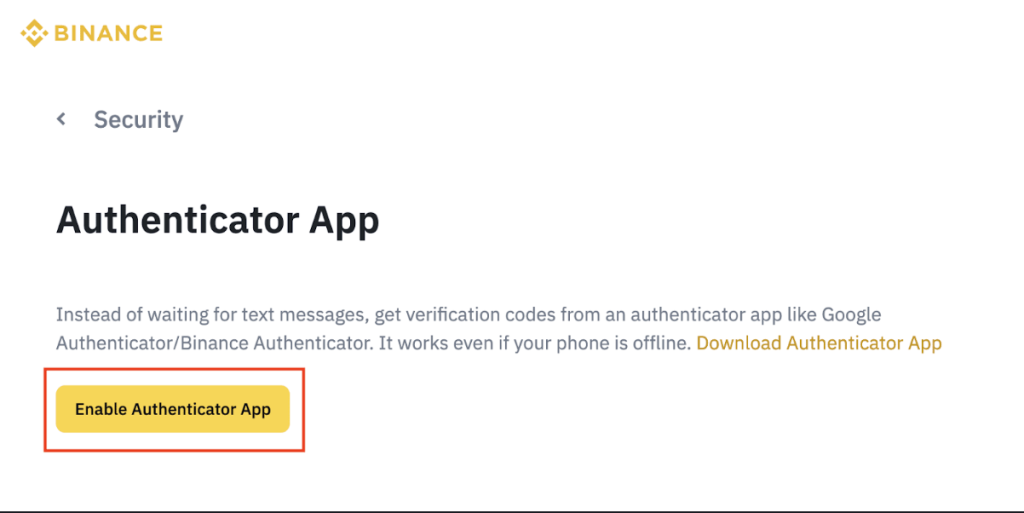
Step 4: Link Google Authenticator Now you will need to link the Google Authenticator app to your Binance account.
There are two ways to do this:
Method A: QR Code Scan (EASIEST)
- In the Binance window, you will see a QR code.
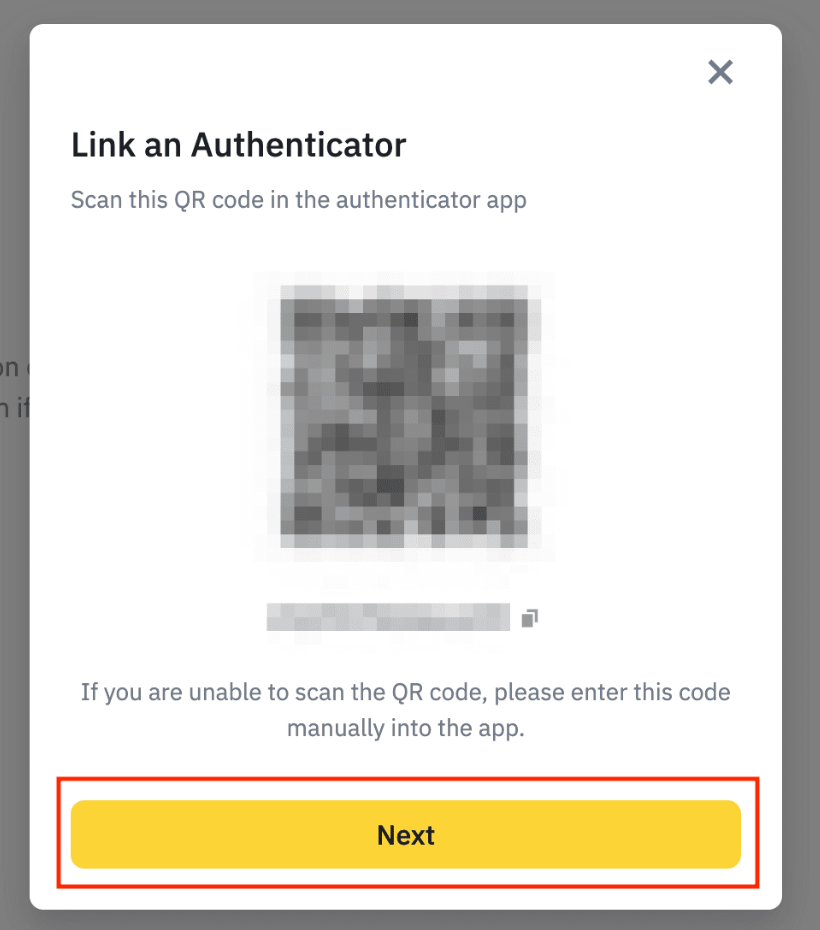
- Open Google Authenticator on your smartphone.
- Add a new account:
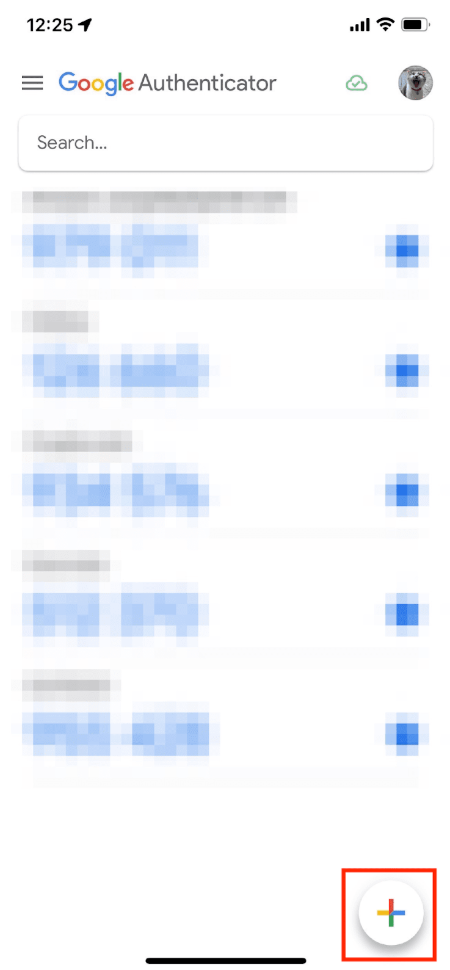
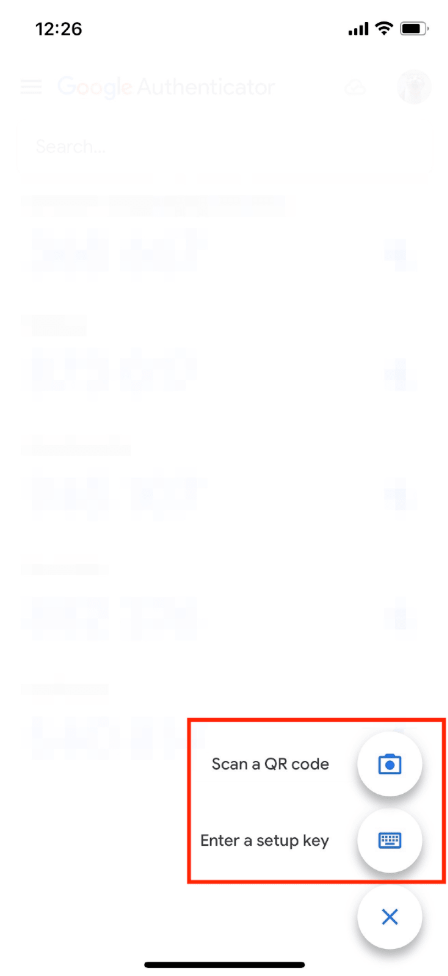
- Tap the “+” button (bottom right on Android, top right on iOS).
- Select “Scan a QR code”.
- Scan the QR code:
- Point your smartphone camera at the computer screen.
- The app will automatically detect the code. You will see “Binance” appear in the list with a 6-digit code.
Step 5: Save the Backup Key
THIS IS AN IMPORTANT STEP – DO NOT SKIP IT!
- Below the QR code on Binance, you will see a backup key (a series of letters and numbers).
- Save this key in a safe place: Write it on a piece of paper, save it in a password manager, or take a screenshot and save it in a safe place.
- Why is it important? If you lose your phone or reinstall the app, this is the only key to recover access. Binance cannot recover it for you.
- Security: Never share this key with anyone. Anyone with this key can access your account.
Step 6: Complete Activation
- Return to the Binance window on your computer.
- Click on “Next” or “Continue”.
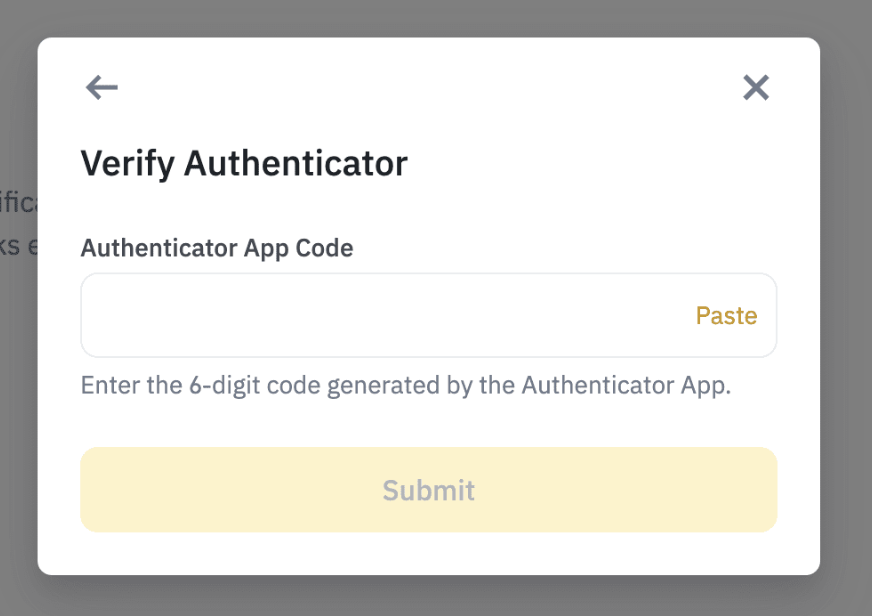
- Enter verification code: You will be asked to enter:
- a) Email code:
- Binance will send you a code via email.
- Check your inbox.
- Enter the 6-digit code received.
- b) Google Authenticator code:
- Open Google Authenticator on your phone.
- Find the 6-digit code under “Binance”.
- The code changes every 30 seconds. Enter it quickly before it expires.
- If it expires, use the newly generated code.
- a) Email code:
- Confirm activation:
- Click on “Submit” or “Confirm”.
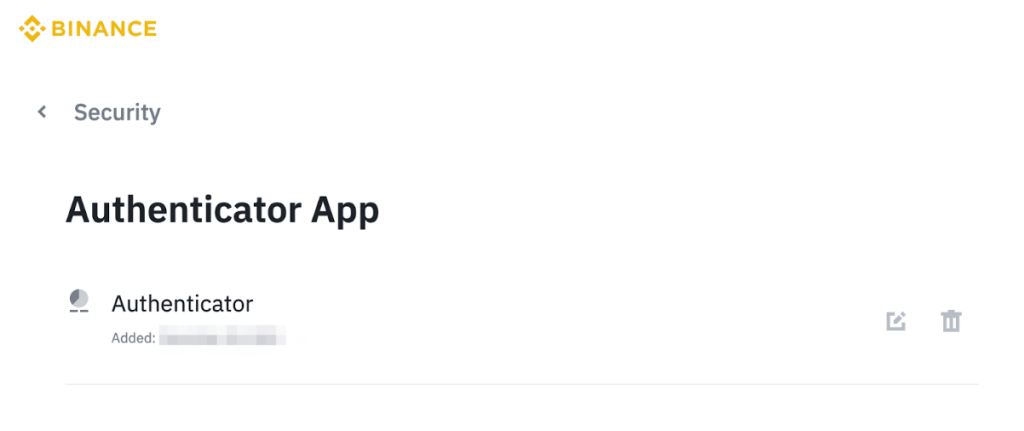
- You will see a success message: “2FA enabled successfully”.
How It Works From Now On
Every time you log in to Binance or perform sensitive operations:
- Enter email and password (as usual).
- Binance will ask for the 2FA code.
- Open Google Authenticator on your phone.
- Enter the 6-digit code you see under “Binance”.
- Access confirmed!
Remember:
- The code changes every 30 seconds.
- No internet connection is needed to generate the code.
- Each code can be used only once.
What to Do If You Lose Your Phone
- If you lose your phone or the Google Authenticator app:
- Use the backup key you saved in Step 5.
- Install Google Authenticator on a new phone.
- Manually add the Binance account using the backup key. 2FA will work again.
- If you didn’t save the backup key:
- You will need to contact Binance support.